In summary. Connecting a barcode scanner to Odoo POS is immediate: the device simply needs to operate in HID Keyboard mode, which is the factory standard for most professional models. No drivers, no special configuration. The real benefit is that Odoo integrates the till, stock, purchasing, and invoicing into a single system, also complying with VeriFactu and TicketBAI in 2026.
Why the barcode scanner matters more than it seems?
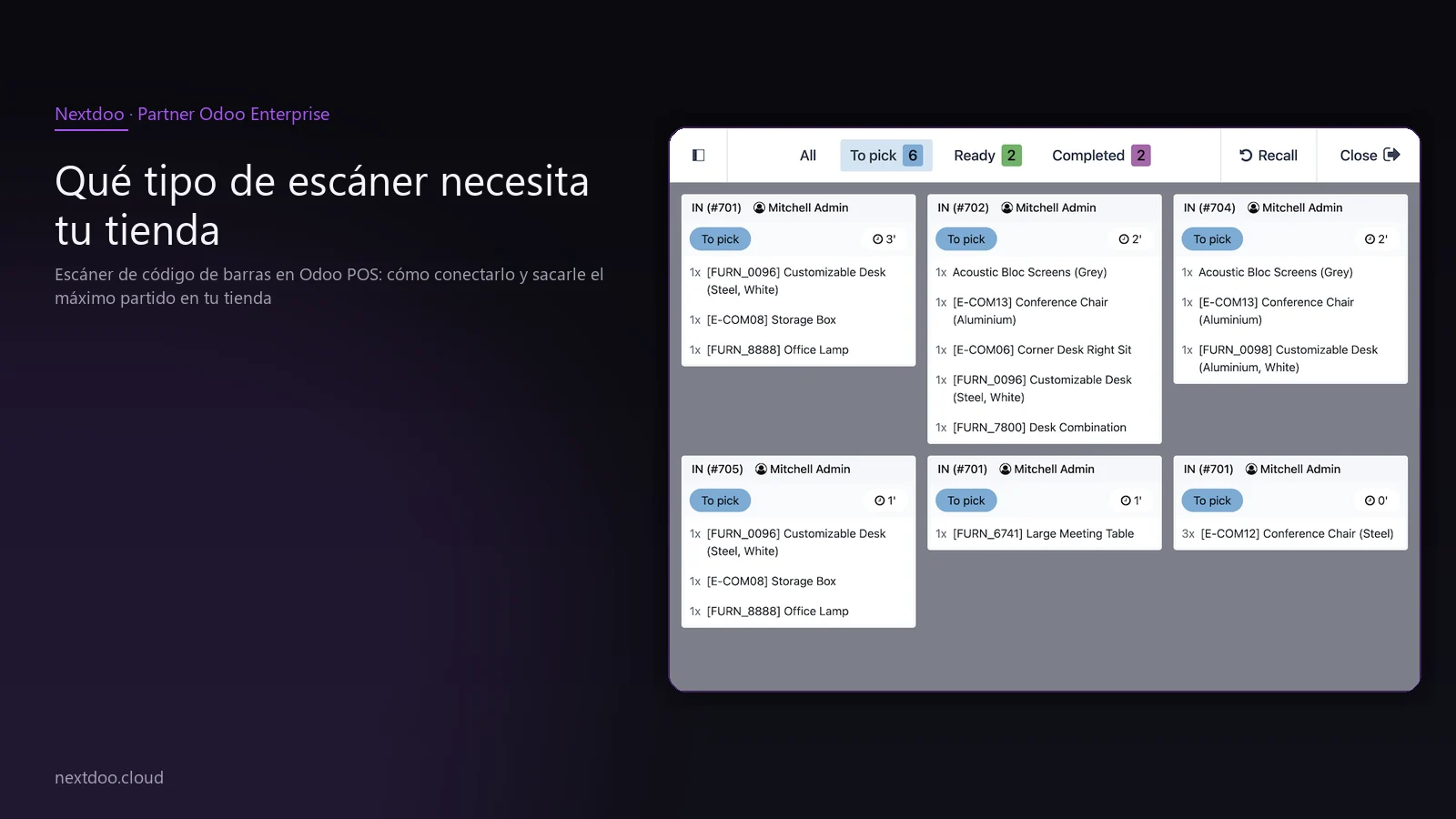
Connecting a barcode scanner to Odoo POS only requires the device to operate in HID Keyboard mode, without the need for drivers or complex additional configurations.
When you manage a physical shop, every second at the till counts. A shop assistant who manually types in references makes mistakes. A queue of four people on a Friday afternoon can mean lost sales. The barcode scanner eliminates that bottleneck, and when it's truly integrated into the system —not just plugged into a computer with no further logic behind it— the benefit multiplies.
Odoo POS is designed to work with barcode scanners right from the start. No special configuration is needed, no third-party software is needed, no bespoke integration is needed. Most scanners on the market, including those from the Honeywell range, operate in what is called HID mode: the device behaves like a keyboard and sends the code's digits to the active field on the screen. Odoo recognises this string, searches for the product, and adds it to the sale.
In this guide, we explain how this integration works, what you should consider when choosing a scanner, how to also use it in the warehouse, and what real advantages it brings for a retail SME in Spain.
How a scanner works with Odoo POS: no magic, no complications?
The technical basis is simple. A barcode scanner in HID Keyboard mode emulates a keyboard. When you point at the code and pull the trigger, the scanner 'types' the barcode digits at lightning speed and adds a line break at the end. Odoo POS, which has the cursor in the product search field, receives this string, searches for the EAN or internal reference in the database, and adds the product to the order.
That means you don't need to install drivers, you don't need to configure any special parameters in Odoo, and you don't need to contract any additional services for it to work. Compatibility is practically universal with any scanner that operates in that mode.
What is important is that the product in Odoo has its barcode assigned. Without that data, the system cannot make the match. This work is done in the product catalogue: the EAN13 of each reference is imported —usually from the supplier's file or from the catalogue— and from that moment on, the scanner works by itself.
Some scanners also offer Bluetooth connectivity. The principle is the same: once paired with the tablet or POS computer, they act as a wireless keyboard. The only operational difference is that the cashier can move with a certain degree of freedom or the scanner can be in a cable-free stand.
What type of scanner does your shop need?
Not all scanners are the same, and choosing wisely avoids later frustrations. The decision fundamentally depends on three factors: the type of codes you handle, the volume of operations, and whether you need mobility.
1D or 2D Scanners
1D scanners read linear barcodes: the EAN13 that appears on most consumer goods, fashion, hardware, and many other sector products. They are cheaper and sufficient for the vast majority of Spanish retail shops.
2D scanners add the ability to read QR codes and matrix codes. They are useful if you work with QR discount vouchers, loyalty tickets, warehouse labels with denser information, or if you plan to use VeriFactu with graphical representation in QR. If in doubt, a 2D scanner covers all possible cases.
Wired or wireless
For a fixed POS till, USB wiring is the most reliable option. No battery to charge, no interference, no pairings to renew. The scanner is placed in the stand next to the monitor, and the cashier barely has to think about it.
For a small warehouse, for an operator who moves between shelves, or for a shop where the POS is a tablet, Bluetooth is the natural solution. The range of action is sufficient for most shop spaces.
Volume of operations
In a shop with few daily operations, a mid-range scanner works perfectly for years. In a high-volume point of sale —supermarkets, convenience stores, large stores— a more robust model with better ergonomics and faster reading is advisable, so that the cashier doesn't tire.
The Honeywell range, for example, offers references for each of these profiles. But it is not the only compatible brand. Zebra, Datalogic, Symbol, and many others work just as well with Odoo as long as they operate in HID mode.
How to set up the scanner in Odoo POS step by step without jargon?
Getting started is remarkably simple. It's advisable to follow a logical order to save time.
The first step is to ensure that the scanner is in HID Keyboard mode. Most models come like this from the factory. If not, the manufacturer's manual includes a configuration barcode that you simply need to scan to change the mode. In Honeywell, for example, this process is documented in their quick reference guide.
The second step is to connect the scanner to the POS computer. If it's USB, simply plug it in. The operating system recognises it automatically. If it's Bluetooth, it's paired from the device's Bluetooth settings like any wireless keyboard.
The third step is to verify that it works: open a text editor, point at the barcode of any product, and pull the trigger. The digits should appear followed by a line break. If so, the scanner is ready.
The fourth step is to open Odoo POS and do the real test: with the point of sale open and the cursor in the search field, scan a product that has its EAN assigned in the catalogue. Odoo finds it and adds it to the order. Done.
There is nothing else to configure in Odoo for basic till operations. Odoo's official documentation confirms this compatibility without additional steps.
The scanner beyond the till: integrated warehouse and logistics
One of Odoo's strengths compared to independent POS solutions is that the scanner is not only used at the till. The same device —or a similar one— is used in the warehouse to manage goods receipts, internal transfers, order picking and cycle counts.
Odoo has specific functionality for warehouse management with a scanner that works from the mobile or tablet browser. The operative picks up the tablet, opens the application, selects the operation they are going to perform and starts scanning. The system validates each scan against the order or the ongoing operation, alerts if there are discrepancies and records the movement in real time.
Goods Receipts
When a supplier order arrives, the operative scans each received item. Odoo compares what has been scanned with the pending purchase order, detects differences and automatically updates the stock when validating the receipt. Goodbye to paper sheets and inventory discrepancies.
Online Order Picking
For shops that combine physical and online sales —an increasingly common situation in Spanish retail—, order picking with a scanner significantly reduces picking errors. The system guides the operative through the locations, confirms each scanned product and closes the delivery note when everything is complete.
Cycle Counts
Doing a full inventory once a year is traumatic for any shop. Odoo allows for cycle counts: a zone or product family is counted, each item is scanned and the system updates the stock without needing to block all operations.
What changes with VeriFactu and e-invoicing in 2026?
In 2026, the Spanish tax landscape adds a layer of relevance to the integration of POS with the management system. VeriFactu, the verifiable invoice registration system promoted by the AEAT, requires that each issued invoice is registered securely and traceably.
Odoo POS, being integrated into the same system as financial management and invoicing, allows each sales receipt —generated from the POS with the scanner— to be linked to the invoicing flow that complies with VeriFactu requirements. There are no manual exports, no double data entry and no risk of inconsistencies between what is sold and what is invoiced.
This is an important difference compared to independent POS solutions that then have to be manually synchronised with the accounting firm or other software. In Odoo, the sale, stock, invoice and tax record are the same operation.
If you also work in the Basque Country or Navarre, TicketBAI imposes similar traceability requirements for invoicing. Odoo is adapted to these regulatory contexts, which means that scanner operations at the till are already within a compliant environment.
What to know about Honeywell in Odoo and what doesn't change anything?
Honeywell is one of the most prominent brands in Spanish retail. Its scanners have a good reputation for durability and ease of use, and are found on many counters in fashion, hardware, stationery and food shops.
Compatibility with Odoo POS is total in models that operate in HID Keyboard mode, which is the standard factory configuration in the Voyager range. The Voyager 1450g is the most common model at shop tills: wired, robust and fast-reading. The Voyager 1602g adds Bluetooth for those who need mobility. The Voyager XP 1472g and models from the Xenon range also read 2D and QR codes.
That said, the brand is not what determines whether the system works well. What determines whether the system works well is that products have their EANs assigned in Odoo, that the scanner is in HID mode and that the POS equipment responds smoothly. Any medium-high quality scanner on the market meets these requirements.
What really makes a difference is the implementation of the complete system. A scanner plugged into basic POS software and disconnected from stock, accounting and invoicing only solves a small part of the problem. Odoo's proposal is that everything is connected from the outset.
Why a Spanish SME benefits from Odoo POS compared to partial solutions?
Many shops in Spain work with a combination of systems: a POS from one brand, separate accounting software, Excel for stock and, at best, an e-commerce platform disconnected from the above. At the end of each month, data has to be reconciled between systems, there are errors and wasted time.
Odoo solves this with an integrated approach. The point of sale, stock control, supplier purchases, invoicing, accounting and CRM are all in the same system. The barcode scanner is a tool within that ecosystem, not an external add-on.
For a self-employed person with a shop, that means that at the end of the day they know exactly what they have sold, how much stock they have left and what they need to order. For an SME with several shops or its own warehouse, it means that business visibility is complete and in real time.
The cost of implementing Odoo in a retail SME is adjustable to the size and actual needs. There is no single fee. The starting point is always an analysis of the current situation and what is to be achieved. From there, the budget is defined with discernment.
Frequently asked questions
Do I need any additional drivers or software to connect the scanner to Odoo POS?
No. If the scanner operates in HID Keyboard mode —which is the standard configuration for most professional models on the market, including the Honeywell Voyager range— the operating system recognises it as a keyboard and Odoo uses it directly. There is no need to install anything additional nor configure any special parameters in Odoo. It is enough for the products to have their barcode assigned in the catalogue.
What happens if a product doesn't have a barcode in Odoo?
If the product does not have an EAN or internal reference assigned in Odoo, the system cannot find it when scanning. The cashier will see a message that no product has been found. The solution is to ensure that the product catalogue has the barcodes loaded before starting operations. This is usually done during the implementation phase, by importing data from the supplier's file or from the previous system.
Can I use the same scanner at the till and in the warehouse?
Yes. A Bluetooth scanner can be used at the till and then taken to the warehouse for receipts or inventories. That said, in practice it is usually more convenient to have a dedicated scanner for each area to avoid interrupting till operations. Odoo is compatible with multiple scanners operating simultaneously in different positions.
Does Odoo POS comply with VeriFactu and TicketBAI in 2026?
Odoo is adapting its functionalities to the VeriFactu requirements promoted by the AEAT for 2026, as well as to TicketBAI in the foral territories. As the POS is integrated into the same invoicing and accounting system, traceability between the sale at the till and the tax record is direct. It is advisable to consult with the implementing partner for the exact situation according to the version and territory, because the regulations are still under development.
Does Odoo POS work without an internet connection?
Odoo POS has an offline mode that allows you to continue operating at the till if the connection drops. Sales are synchronised when connectivity is restored. It is important to verify this behaviour during implementation and properly define the workflows so that the shop does not get blocked in the event of a network outage.
What if I'm coming from other POS software?
If you currently use other management or POS software —no matter which one— and you want to migrate to Odoo, the usual process involves exporting the product catalogue with its EANs, the customer history and, if necessary, the sales history. Nextdoo, as an official Odoo Enterprise partner in Spain, analyses each migration in a personalised way to ensure that the data is clean and that operations are not interrupted.
Conclusion: the scanner is the tip of the iceberg
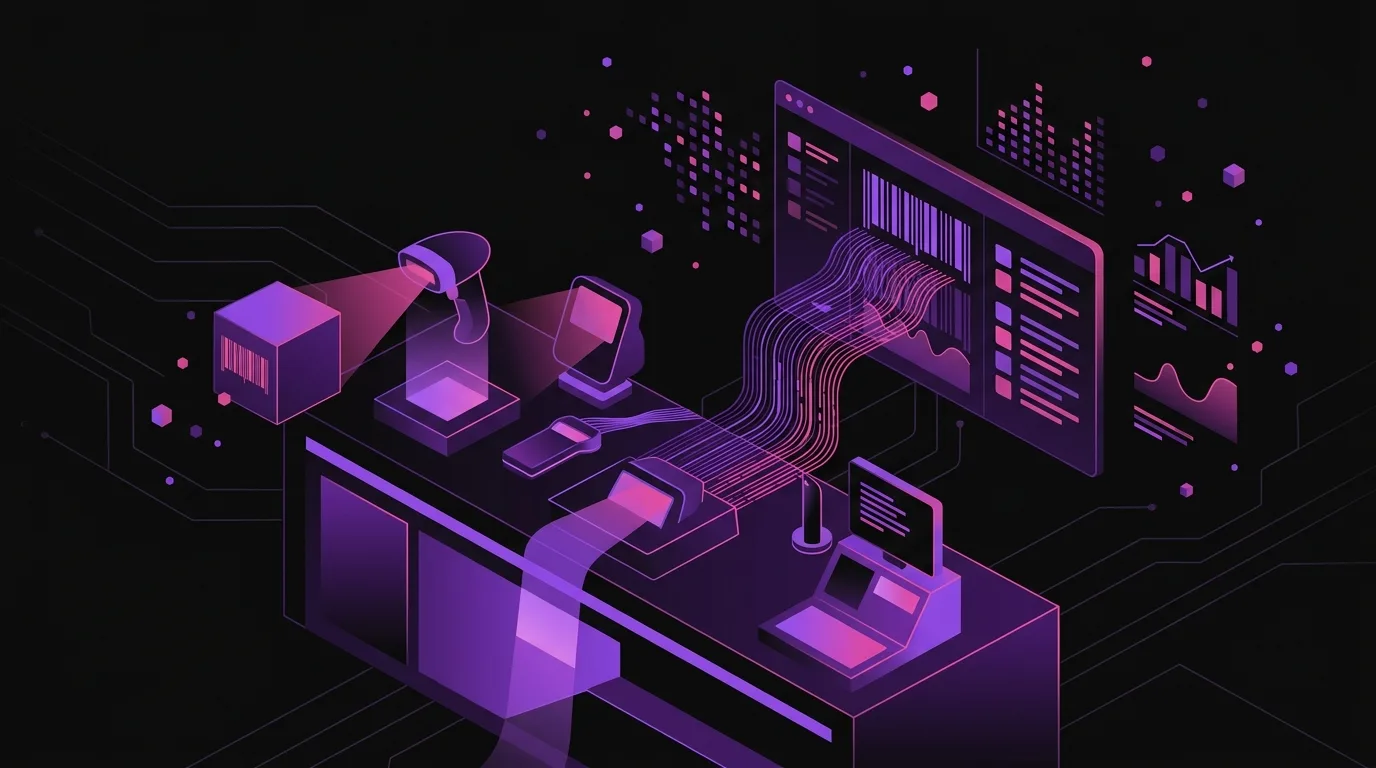
Connecting a barcode scanner to Odoo POS is a matter of minutes. There's no real technical complication. What really matters is what lies behind: a well-maintained product catalogue, reliable stock control, invoicing that complies with Spanish tax regulations for 2026, and an integrated business vision.
If your shop still operates with partial and disconnected systems, the scanner won't solve the underlying problem. What solves it is having a system that connects the till, warehouse, purchases, and accounting in one place. That's what Odoo does, and that's why it makes sense to implement it properly from the outset.
If you want to see how this would look in your specific business, a short analysis call is best. No obligation and no generic sales presentations.
Indicative information. Actual timelines, costs, and scopes are confirmed after a personalised analysis. JLM Business Solutions SL · B16842831.
Frequently asked questions
Do I need any additional drivers or software to connect the scanner to Odoo POS?
No. If the scanner operates in HID Keyboard mode —standard factory configuration in most professional models, including the Honeywell Voyager range— the operating system recognises it as a keyboard and Odoo uses it directly. There's no need to install anything additional or configure any special parameters in Odoo. It's enough for products to have their barcode assigned in the catalogue.
What happens if a product doesn't have a barcode in Odoo?
If the product doesn't have an EAN or internal reference assigned in Odoo, the system cannot find it when scanned. The cashier will see a 'product not found' notice. The solution is to upload the barcodes to the catalogue before operating, which is usually done during implementation by importing data from the supplier or the previous system.
Can I use the same scanner at the till and in the warehouse?
Yes, especially if it's Bluetooth. That said, in practice it's usually more convenient to have a dedicated device for each area so as not to interrupt the till's operations. Odoo is compatible with multiple scanners operating simultaneously in different business locations.
Does Odoo POS comply with VeriFactu and TicketBAI in 2026?
Odoo is adapting its functionalities to the VeriFactu requirements driven by the AEAT for 2026, as well as to TicketBAI in the 'foral' territories. As the POS is integrated with invoicing and accounting, traceability between the till sale and the fiscal register is direct. It is advisable to verify the exact situation with the implementing partner according to the version and territory.
Does Odoo POS work without an internet connection?
Odoo POS has an offline mode that allows operations to continue if the connection drops. Sales synchronise when connectivity is restored. It's important to verify and configure this behaviour during implementation so that the shop doesn't get blocked by a temporary network outage.
What happens if I come from another POS software and want to migrate to Odoo?
The usual process involves exporting the product catalogue with its EANs, the customer history, and, if necessary, the sales history. Nextdoo, as an official Odoo Enterprise partner in Spain, analyses each migration in a personalised way to ensure that the data arrives clean and that operations are not interrupted during the change.