
In summary. Epson TM-T20III and TM-T88VII printers connect to Odoo POS via Ethernet network without local drivers. The key is to configure the ePOS certificate on the printer so that the point of sale terminal's browser can communicate with it. With a fixed IP and that certificate installed, you can print from any network device: computer, tablet, or mobile. The cash drawer and logo on the receipt work automatically once the configuration is complete.
Connecting a receipt printer to the point of sale is one of those steps that seems minor and, when it fails, paralyses the business. If you own a shop or restaurant in Spain and are considering Odoo POS, this guide explains how integration with Epson TM printers works: from choosing the correct model to printing the first fiscal receipt with logo, drawer, and everything.
The integration of Epson TM printers into Odoo POS requires configuring the ePOS certificate to establish direct communication between the point of sale terminal and the network printing device.
Why the receipt printer matters more than it seems?
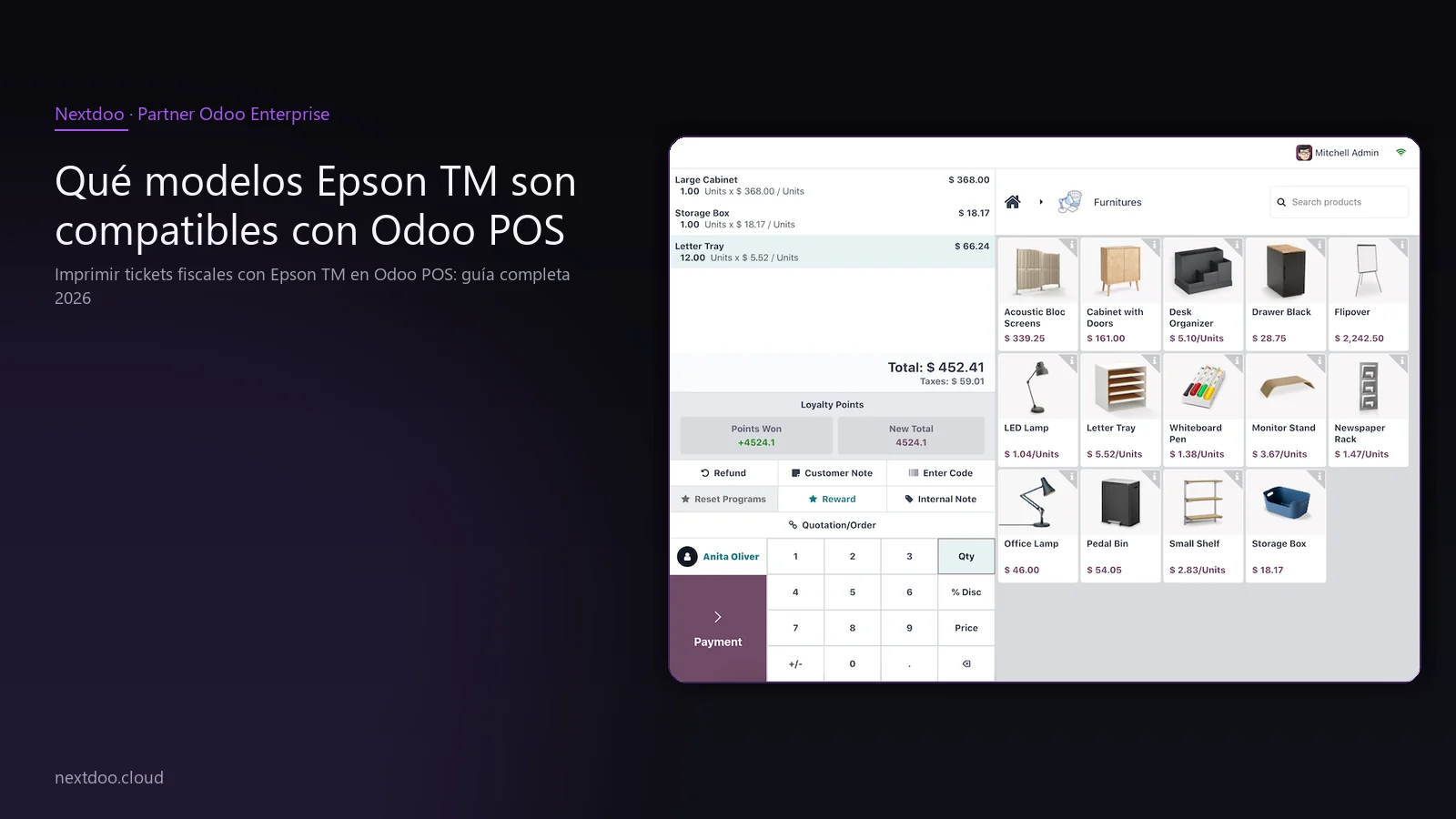
In a physical point of sale, the receipt printer is the final link in every transaction. It's what the customer sees, what complies with AEAT regulations, and what, in many cases, opens the cash drawer. Poor integration between the printer and the software results in queues, errors, and, in the worst case, receipts that do not meet fiscal requirements.
From 2026, the VeriFactu regulations and the expansion of TicketBAI in the Basque Country and Navarre reinforce the requirements for sales documents issued at the point of sale. It's not enough to print a piece of paper: the receipt must contain the correct data, generated by a system that registers them fully. Odoo POS complies with these requirements when properly implemented, and the printer is part of that chain.
Not choosing the printer well, or configuring it haphazardly, can cause problems during an inspection. It's not alarmism: it's prudent management. Choosing a compatible Epson TM and configuring it correctly with Odoo is the simplest way to avoid those problems.
The good news is that Odoo POS is specifically designed to work natively with Epson TM printers, without intermediaries or additional software. That greatly simplifies implementation and reduces points of failure.
Which Epson TM models are compatible with Odoo POS?
Epson has a wide range of thermal receipt printers, but not all of them have the same level of compatibility with Odoo. The TM series models are those with native support and official documentation.
The TM-T20III is the most widespread model in Spanish retail. It combines USB and Ethernet connectivity, includes an automatic autocutter and an output for a cash drawer. It is robust for daily use in medium-to-high volume stores. Its market price is in a mid-range indicative bracket; consult your distributor for an updated price.
The TM-T88VII is the high-end option within the same family. It offers higher printing speed, greater durability with intensive use, and the same connectivity options. It is the usual choice in hospitality or shops with many transactions per hour. The outlay is higher, but the difference pays for itself over time if the volume justifies it.
The TM-m30 is the compact alternative. Useful when the counter is small or when the point of sale is mobile. It supports Ethernet, USB, and Bluetooth, which provides more flexibility in placement. Its performance is somewhat lower than the T20III in speed, but sufficient for most SMEs.
All three models are compatible with Epson's ePOS technology, which allows direct integration with Odoo POS from the browser. Any of them is a correct choice; the decision depends on sales volume, available space, and budget.
Why connect the printer via Ethernet and not USB?
This is one of the most frequently asked questions we receive at Nextdoo. The answer is clear: Ethernet provides flexibility, USB removes it.
With USB, the printer is physically tied to the computer it's connected to. If that computer fails, the printer won't work. Furthermore, Odoo POS can run from any device with a browser: tablet, mobile, another computer. With USB, you can only print from the device that has the cable. That severely limits operations.
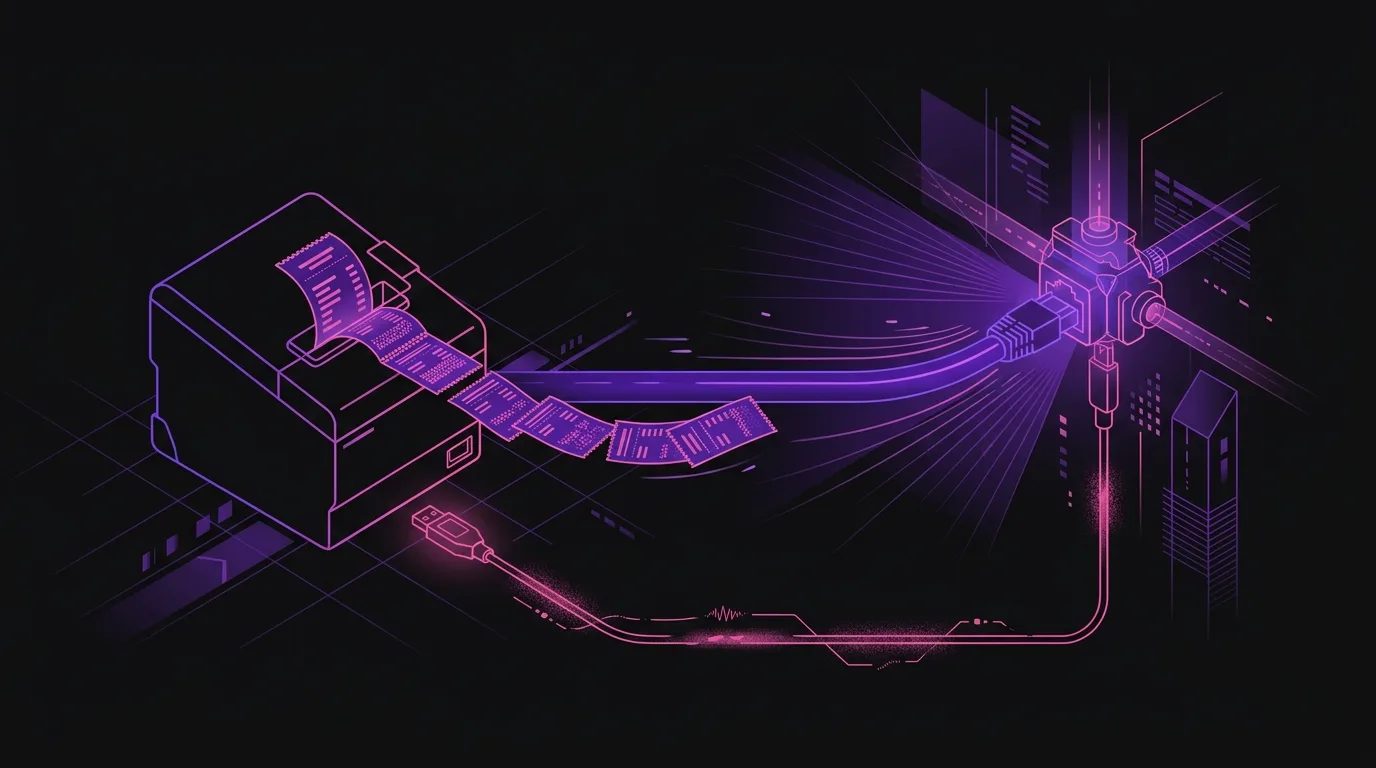
With Ethernet, the printer becomes another device on the local network. Any terminal with Odoo POS open in the browser and on the same network can send receipts to that printer. You can have multiple counters sharing one printer, or change the sales device without altering anything in the printer's configuration.
Network configuration has an important step: assigning a fixed IP address to the printer, either from the router (DHCP reservation by MAC address) or from the printer itself. If the IP changes every time it restarts, Odoo POS loses the connection and needs to be reconfigured. A fixed IP prevents that problem at its root.
Once you have the fixed IP noted down, the installation becomes predictable and stable. That is the goal.
What is the ePOS certificate and why is it mandatory?
Here is the step that causes the most confusion and, if skipped, prevents everything from working.
When Odoo POS runs in the browser, it does so under HTTPS protocol. For security reasons, modern browsers do not allow an HTTPS page to communicate with a local network device unless that device has a valid SSL certificate. The Epson printer needs that certificate for the browser to accept the communication.
Epson calls this process 'ePOS Certificate' or 'Self-Signed Certificate'. It is generated from the printer's own web administration interface, by accessing its local IP from a browser. The process involves generating the certificate, downloading it, and installing it as a trusted certificate in the point of sale terminal's browser.
Odoo's official documentation details this process step-by-step. The result is that the point of sale terminal's browser recognises the printer as a trusted device and allows communication. Without this step, the browser blocks the connection and the printer does not respond even if it is properly connected to the network.
It's a process done only once per terminal and per printer. It's not complex, but it must be followed carefully. If you have several sales terminals sharing one printer, the certificate must be installed on each of them.
What happens if you change the sales device
If at any point you change the tablet or computer from which the point of sale is operated, you will need to reinstall the certificate on that new device. The printer remains unchanged; only the new terminal needs to recognise it as trusted. It's a quick step if you already have the certificate downloaded.
Configuring Odoo POS to recognise the printer
Once the printer has a fixed IP and the certificate is installed on the terminal, configuration within Odoo POS is straightforward.
From the point of sale configuration panel, the ticket printer option is activated and the Epson IP address is entered. Odoo establishes the connection automatically when a sales session is opened. There's no need to install any additional drivers or software on the computer or tablet.
The first recommended step after configuring the IP is to do a print test with a minimum amount sale or a test in demo mode. This confirms that the connection works before opening the business to the public.
If the connection fails in this test, the most common reasons are three: the IP has changed because it wasn't fixed correctly, the certificate wasn't installed in that browser, or the terminal and the printer are on different subnets. All three have a simple solution once the problem is identified.
Compatibility with different browsers
Odoo POS works on Chrome and Firefox without issues with Epson TM. Safari on iPad has some peculiarities in managing local network certificates that should be reviewed with the implementation team. In general, Chrome is the most stable option for intensive point of sale use.
The cash drawer: automatic integration
Epson TM printers include a specific connector for a cash drawer, generally in RJ-11 format. The drawer connects directly to the printer, not to the computer or the router.
When Odoo POS sends a ticket to print, the printer automatically executes the drawer opening command along with the printing. There's no need to configure anything additional in Odoo for this: if the drawer is connected to the printer and the printer is configured in Odoo, the drawer opens with every cash payment.
This behaviour can be adjusted if the business has special operations, such as not opening the drawer for card payments. Odoo POS allows this configuration without needing to touch anything on the printer. It's a detail appreciated by businesses with a high volume of card transactions.
The robustness of this integration is one of the reasons why Epson TM is the benchmark for point of sale systems with Odoo in Spain. The printer-drawer chain works reliably and does not require specific maintenance beyond normal use.
Receipt customisation: logo, tax details and format
The ticket printed by Odoo POS is not just a piece of paper with the amount. In Spain, for a ticket to be fiscally valid, it must include specific data: issuer's NIF, company name, address, description of items with their VAT type, taxable base, VAT quota, and total. Odoo POS generates all of this automatically if the business data is correctly configured.
Additionally, you can customise the appearance of the ticket by adding the business logo. Epson TM allows storing a logo in internal memory, which is included on each printed ticket. The logo must be in bitmap format and, depending on the model, the upload process is done from the printer's web administration interface.
Odoo also allows customising the header and footer text of the ticket: thank you message, opening hours, social media, or any additional information you want to appear. This level of customisation is managed from the point of sale settings without needing to touch the printer.
For businesses subject to TicketBAI in the Basque Country or Navarre, the ticket must also include the QR code and the simplified invoice identifier. Odoo, correctly configured for TicketBAI, automatically generates and prints these elements on the ticket.
Odoo POS in the context of Spanish retail and hospitality
Nextdoo primarily works with shops and restaurants in Spain. In both sectors, the ticket printer is one of the first points of contact that the customer has with the system. A fast, clean print with the correct data gives a professional image; while a slow, cut, or missing fiscal data print generates mistrust.
In hospitality, integration with Odoo POS goes beyond the ticket: the system manages tables, kitchen orders, waiter shifts, and till closures. The ticket printer at the bar and the order printers in the kitchen are part of the same ecosystem. Epson has specific models for the kitchen, more resistant to heat and humidity, which also integrate with Odoo.
In retail, the ticket printer works alongside the barcode reader, customer display, and loyalty system. Odoo POS integrates all these peripherals into a single interface, and the configuration of each follows a similar logic to that of the printer: local network, fixed IP, configuration in the Odoo panel.
The advantage of working with an ecosystem like Odoo is that you don't have to manage integrations between different software. The entire business, from point of sale sales to accounting and stock control, operates on the same system. This reduces errors, reduces administrative work, and provides a complete real-time view of the business.
Frequently asked questions
Can I use an old Epson printer that I already have in the business?
It depends on the model and if it has ePOS support. Older TM models without an Ethernet interface or without SSL certificate support cannot connect to Odoo POS natively. In such cases, there are technical alternatives, but they involve more complex and less stable configurations. If the model is recent and has Ethernet, the first thing to do is check Epson's documentation to see if it supports ePOS. If in doubt, contact Nextdoo before implementation to verify it.
What happens if the local network fails during a sales session?
Odoo POS has an offline mode that allows you to continue operating even if the connection to the server is lost. However, if the local network fails, the printer is also not accessible, as it is connected to that same network. In that case, the ticket cannot be printed immediately. When the connection is restored, Odoo retries pending prints. For businesses where immediate printing is critical, it is advisable to have a stable local network and, if possible, a backup internet connection.
Is a dedicated server necessary for Odoo POS or does it work in the cloud?
Odoo POS works both in the cloud-hosted version (Odoo Online) and on dedicated servers. The printer is always on the business's local network, regardless of where the Odoo server is located. The communication between the browser and the printer is always local, which is why the certificate is installed in the terminal's browser and not on the server. Nextdoo helps choose the most suitable architecture based on the size and needs of the business.
Do the tickets generated by Odoo POS comply with VeriFactu?
Odoo, in its version correctly configured for Spain, is adapting to the VeriFactu requirements that come into force progressively from 2026. Compliance with VeriFactu depends not only on the printer but on the entire invoicing system. If you have doubts about whether your current configuration complies, the most prudent thing is to have a review with an official partner like Nextdoo before the regulations directly affect you.
Can I connect several printers to the same point of sale?
Yes. Odoo POS allows configuring additional printers for different functions: a ticket printer at the till and one or more order printers in the kitchen or bar. Each has its own IP and its own certificate installed on the terminal. The configuration is done from the same Odoo panel, without the need for additional software.
What do I do if the printer prints strange characters or without accents?
This problem is usually due to an incorrect character set configuration on the printer. Epson TM allows selecting the character set from its administration interface. For Spanish, the correct set is one that supports Western Latin characters, including 'ñ' and accented vowels. Odoo sends the characters correctly; if the ticket comes out wrong, the adjustment is in the printer's internal configuration, not in Odoo.
Conclusion: install the printer correctly from the start
The integration between Epson TM and Odoo POS is robust and reliable when configured correctly. The three key steps are: Ethernet connectivity with a fixed IP, an ePOS certificate installed in the terminal's browser, and IP configuration in the Odoo panel. With these three steps correctly done, the system operates stably without additional maintenance.
If you are opening a new business or migrating from other point of sale software, this is the time to do things right from the start. A careful implementation of Odoo POS, with the printer correctly integrated and the fiscal data well configured, avoids operational problems and leaves you in a secure position regarding current regulations.
At Nextdoo, we accompany Spanish SMEs throughout the entire process, from hardware selection to commissioning and team training. If you have doubts about which Epson model to choose, how to configure your premises' network, or how to adapt Odoo POS to your business's particularities, contact us before purchasing anything.
Guidance information. Actual timelines, costs, and scopes are confirmed after a personalised analysis. JLM Business Solutions SL · B16842831.
Frequently asked questions
Can I use an old Epson printer that I already have in the business?
It depends on the model and whether it has ePOS support with an Ethernet interface. Older TM models without this connectivity cannot be natively integrated with Odoo POS. Before assuming it works, it's advisable to check Epson's documentation to see if the specific model supports SSL certificates and network connection. If in doubt, contact Nextdoo before implementation to avoid surprises on the day of go-live.
What happens if the local network fails during a sales session?
Odoo POS has an offline mode to continue operating if server access is lost. However, if the local network fails, the printer is also not accessible. Tickets are not printed at that moment, but Odoo retries them when the connection is restored. For businesses where immediate printing is critical, it's advisable to invest in a stable local network and, if possible, have backup internet access for the server.
Do tickets generated by Odoo POS comply with VeriFactu and TicketBAI?
Odoo, correctly configured for Spain, is adapted to the VeriFactu and TicketBAI requirements according to the regulations in force in 2026. Compliance does not depend solely on the printer, but on the complete configuration of the invoicing system. If you have doubts about whether your current implementation complies, it is prudent to have a review with an official partner before the regulations directly affect you.
Can I connect several printers to the same point of sale?
Yes. Odoo POS allows configuring several printers for different functions: one for till receipts and others for kitchen or bar orders. Each printer has its own IP on the local network and its certificate installed on the terminal. The configuration is managed from the same Odoo panel without additional software. It's a common solution in hospitality with the kitchen separate from the payment counter.
What do I do if the ticket prints strange characters or without Spanish accent marks?
The problem is usually in the character set configuration within the printer, not in Odoo. Epson TM models allow selecting the character set from their web administration interface. For Peninsular Spanish, the Western Latin character set must be chosen, which includes 'ñ' and vowels with accent marks. Odoo sends the data correctly; if the result is incorrect, the adjustment is in the printer.
Does Odoo POS need its own server or does it work in the cloud?
Odoo POS works both in the cloud-hosted version and on self-hosted servers. The printer is always on the business's local network, regardless of where the server is located. Communication between the terminal's browser and the printer is always local, which is why the certificate is installed in the browser and not on the server. The choice between cloud and self-hosted server depends on the size of the business and its specific needs.